Now that the brightness and contrast levels were apparent I was able to
select the amount of brightness and the levels of contrast I wanted to
apply to my model. I selected the
brightness to 20 and the
contrast to
30 which highlighted his face more and revealed the brighter colours in
his clothes. This makes the model stand out more on my front cover,
which is how NME and Q magazine have their models on the cover, looking
back at my research.
Next, I wanted to actually edit the body of my model. I wanted to
enhance the colour and brightness on his clothing and face so I went to
Image ------> Adjustments -------> Brightness and Contrast. Once I
had selected what I wanted I was able to then change it and play around
with how I wanted it to look until I decided I was pleased with the
outcome.


Once I had selected his body and all the features that I wanted to
edit, I went to
select --------> inverse because at this point I was
selecting everything apart from the figure of the body. Clicking on
inverse selects the figure of the body and this is the only part that is
currently selected. This would now enable me to edit the body without
changing anything in the background.

This is the first part of editing my model, I cut his figure/body out
with the
quick selection tool (below) by dragging around his body and
zooming in to make sure I correctly selected the parts I wanted. In
certain areas It was harder to select around the body as they are a
similar colour to the background and it doesn't pick up the colour as
well on Photoshop. So I had to zoom in closer and accurately select the
parts I wanted.
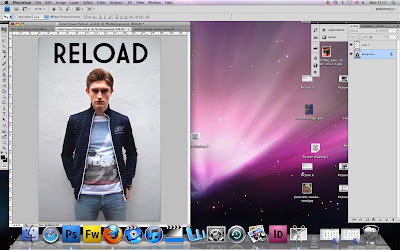
This is a screen grab of my
original picture of my model for my front
cover that I am using. I am going to start making my front cover of my
magazine, on Photoshop, from here and this is the starting point. I am
going to create a very
urban look to the cover of my magazine including
urban fonts and maybe some slang.
FRONT COVER CONSTRUCTION